Audio Delay Test for Bluetooth, Earbuds and Speakers
This audio delay test estimates how late sound arrives from earbuds, headphones or speakers. Press start, watch the square flash while a click plays, and drag the slider until the two seem to happen together. The number is an estimate of your delay in milliseconds. It runs in your browser, uploads nothing and uses no microphone. If you make voice overs, check your listening gear here before you start on the voice over generator.
runs in your browser · free
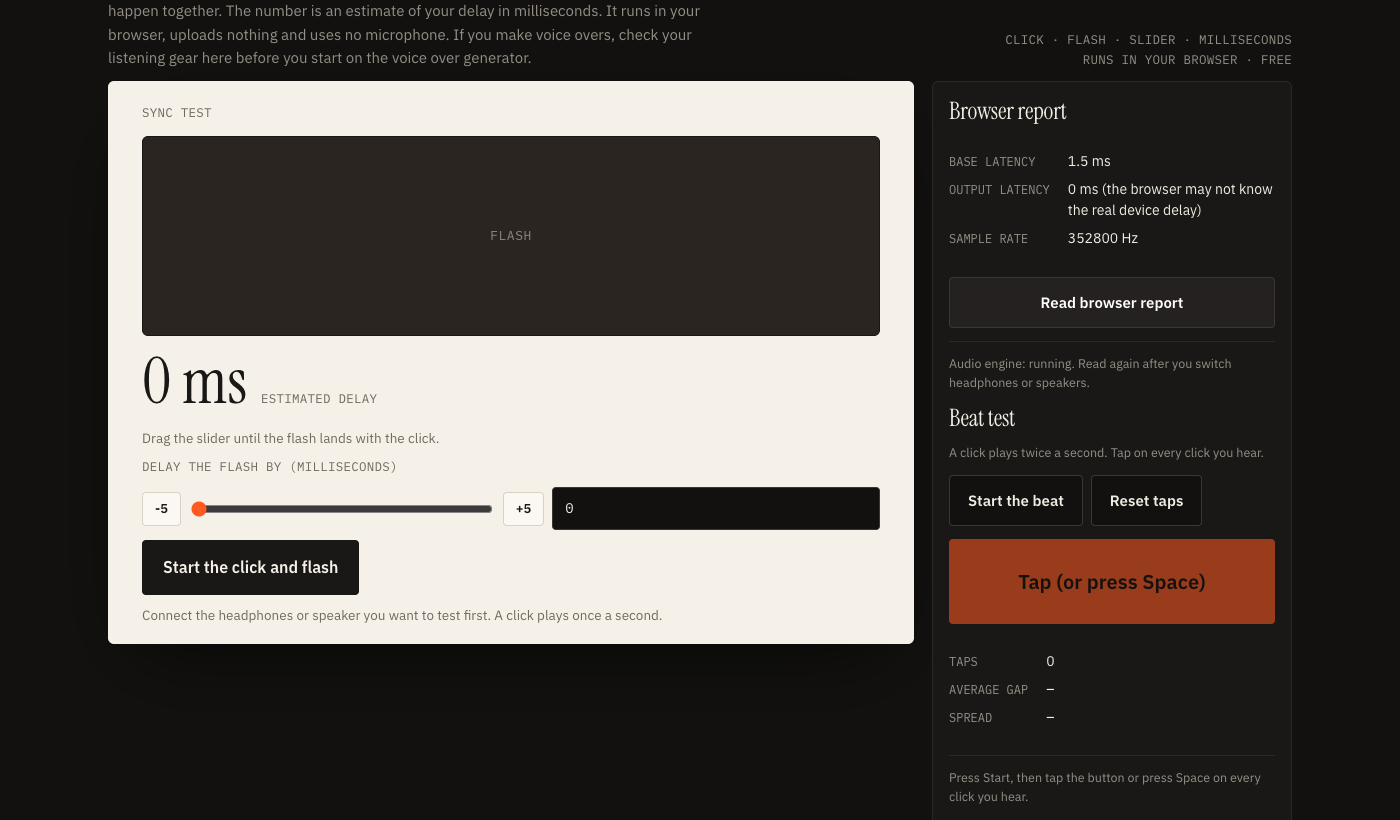
Drag the slider until the flash lands with the click.
Connect the headphones or speaker you want to test first. A click plays once a second.
Audio latency test: Bluetooth readouts explained
Three measurements sit on this page. None is a lab figure.
The browser report
The report button asks your browser for two numbers. Base latency is the time its audio engine takes to prepare sound. Output latency is its estimate of the extra time the system and device add. Chrome usually reports both. Other browsers may leave output latency out or report zero, which does not mean the delay is zero, because wireless devices may hide their delay from the browser.
Treat the report as a hint. Read it once with built-in speakers and once with Bluetooth earbuds, and compare. If the output figure stays the same, rely on the sync test.
The sync test
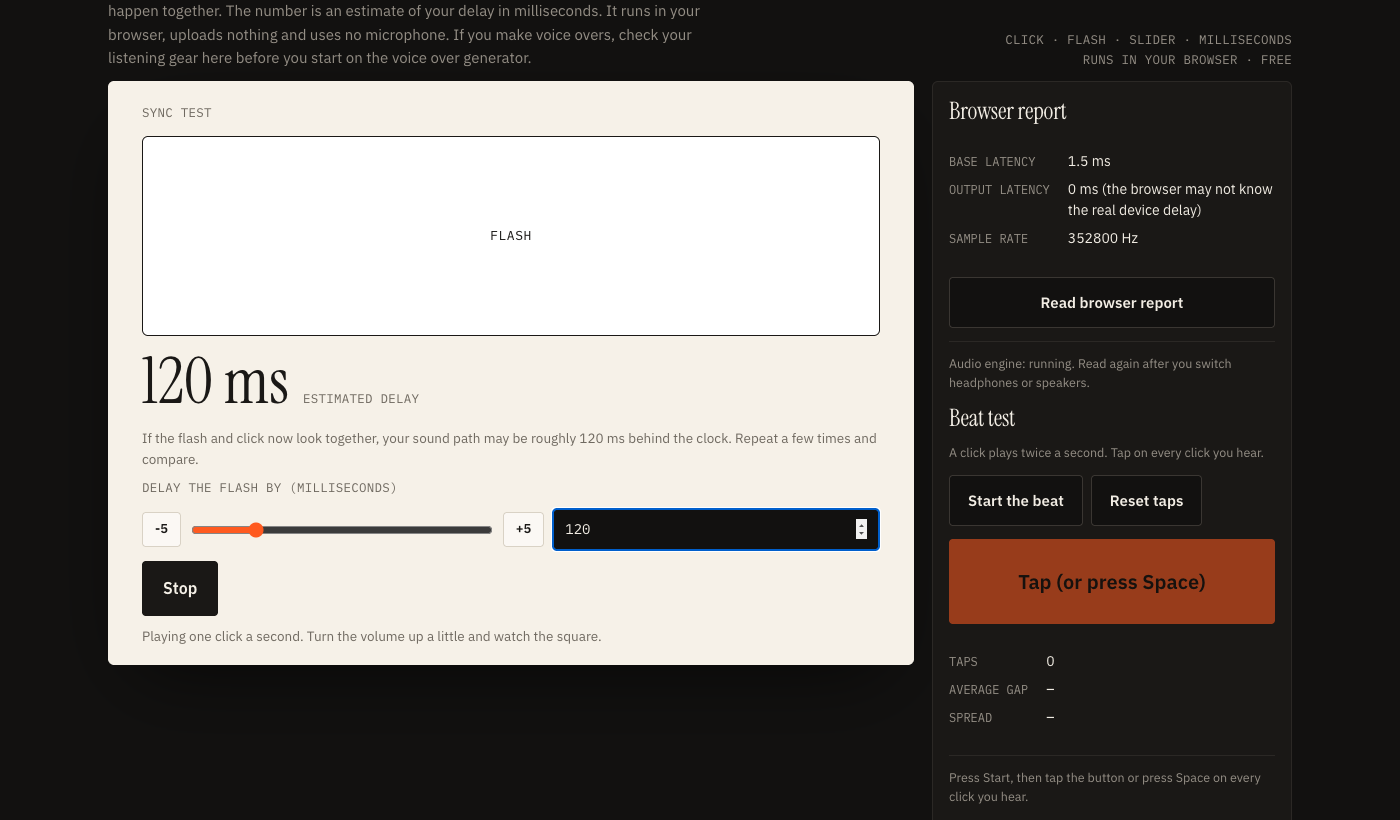
The sync test schedules a click on the audio clock and shows a flash after a delay you choose. Sound over a wireless link usually arrives later than the picture, so slide the flash back until it seems to meet the click. The slider value is a rough estimate of how late the sound may arrive.
Aim for the position where the flash and click feel like one event, then nudge the slider with the plus and minus buttons.
Bluetooth audio delay test: step by step
Five steps, about two minutes. Use the same volume and screen for every device you compare.
- Connect the earbuds, headphones or speaker you want to test and close other tabs that play audio.
- Press Read browser report and note the two numbers.
- Press Start the click and flash and set a comfortable volume.
- Drag the slider from 0 until the flash and click seem to land together. Go past it, come back, and settle in the middle.
- Repeat twice. If your three results are close to each other, take the middle one; if they are far apart, run a few more and compare.
Typical numbers for comparison
Common ranges, not results from this site. They vary with the codec, device and earbud model.
- Wired headphones and built-in speakers: usually much lower than wireless.
- Standard Bluetooth audio: often around 100 to 250 milliseconds.
- Bluetooth in a low latency or gaming mode: often reported at roughly 40 to 100 milliseconds.
Earbuds delay test online: wired against wireless
The most useful earbuds delay test is a comparison. Test your Bluetooth earbuds, then wired headphones or the laptop speakers. The gap between the two slider values suggests the extra delay the wireless link may add on this computer. Comparing the two is more useful than either number alone, because your screen and your own eyes are the same in both runs.
The test runs in the browser, so it shows what a web page experiences. A video app may compensate for Bluetooth delay in a way a browser tab does not.
Speaker latency test: the room matters too
For a speaker latency test, the same method works with one more factor. Sound travels about one metre in three milliseconds, so a speaker three metres away adds roughly ten milliseconds. That is small next to Bluetooth, but it counts for a sound bar or TV with its own processing.
Sit where you normally listen, and test each mode the speaker offers, because some add processing.
The beat test: tap along and read your average gap
A second way to estimate delay that does not rely on your eyes at all.
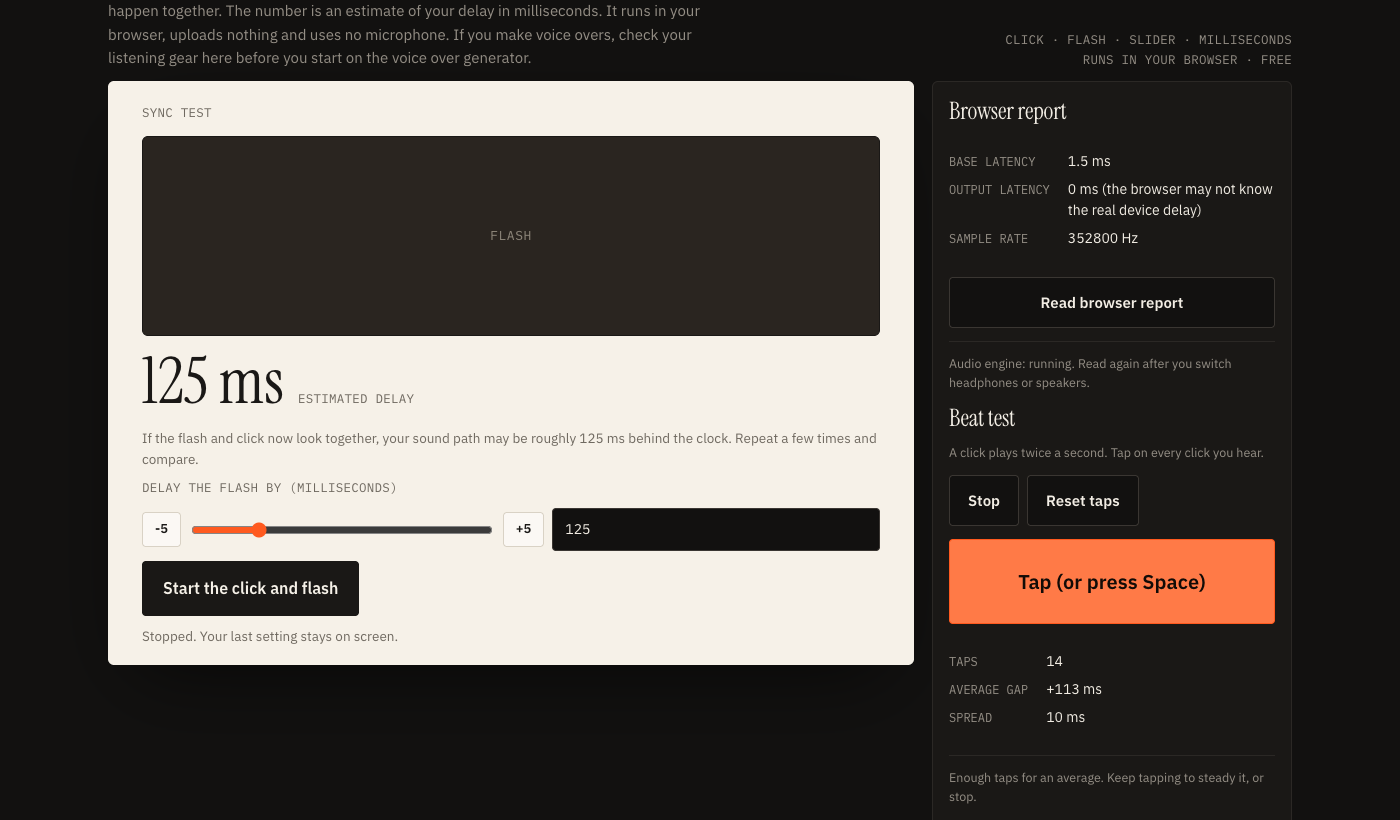
The beat test plays a click twice a second. After four count-in clicks, each tap is compared with the nearest scheduled click, and the page shows the average gap and the spread. A positive average means you tapped after the click was scheduled, and delay in your headphones may push it up.
People often tap slightly ahead of a steady beat, and the gap includes your own habit. So use it as a comparison: tap with wired headphones, then with Bluetooth, and look at the difference. With more taps, one early or late tap counts for less in the average.
When the two tests disagree
The sync test includes your screen's delay and the beat test includes your own tapping habit. Use whichever gives a stable result across three runs.
What these tests can and cannot tell you
This page gives estimates, and several things affect them.
- Screen refresh: the flash appears on the next screen frame, so display speed affects the result.
- Browser and system: each browser and operating system uses its own audio path, so a result is for this browser on this machine.
- Your own judgement: deciding when a click and flash feel together varies from person to person and from run to run.
The page uses no microphone, so it cannot measure the true time from speaker to ear. Repeat the test a few times and compare devices rather than relying on one number.
When a small delay matters and when it does not
People often notice speech behind the lips once the gap passes somewhere around 100 to 200 milliseconds, though sensitivity varies. Music and podcasts do not care, because nothing on screen has to match. These do:
- Video editing and voice over: if you speak along with a video that you hear late, you may speak late too.
- Video calls and screen recordings: late audio makes lips look out of step.
Check your earbuds before you record a voice over
If you build voice overs, test the gear you listen on first. Audio files made on this site contain no Bluetooth delay, because the delay happens only on playback. But when you preview a voice over against a video, delayed earbuds make the voice seem late. Knowing your number lets you allow for it, or switch to wired headphones for the final check.
Making a video with engine noise? The car engine sound generator records a WAV in your browser. The voice over generator gives line-by-line timing and subtitle export, and the text to audio tool turns a script into an MP3. A delay in your headphones is not in either file. It only changes what you hear while you check them.
Tips for lower delay
Use a wired connection for editing and recording, switch on a low latency mode if your earbuds have one, and test again after each change. If the number changes clearly and the change repeats across a few runs, that setting is a likely suspect.
Audio delay test: questions
What is an audio delay test?
An audio delay test estimates how late sound reaches your ears compared with the picture. This page plays a click and flashes a square, and you move a slider until the two line up.
How do I test Bluetooth audio delay online?
Connect your earbuds or speaker, press Start the click and flash, and drag the slider until the flash and click seem to happen together. The slider value is a rough estimate of your delay in milliseconds. Repeat a few times and use the middle value.
How much Bluetooth audio delay is normal?
Standard Bluetooth audio often adds somewhere around 100 to 250 milliseconds, and low latency modes are often reported at roughly 40 to 100 milliseconds. Your own device, codec and phone or computer can land outside these ranges.
Does this page upload my audio or use a microphone?
No. The test plays tones generated in your browser and never asks for a microphone. Nothing is recorded or uploaded, and it does not use your text to speech allowance.
How reliable is the result?
Treat it as an estimate. Results vary with your browser, device and how you judge the sync, so repeat the test a few times and compare. Comparing two devices on the same computer is more useful than reading one number on its own.